1 An exquisite corpse to discover collaborative work
So far, we have discovered the virtues of Git in an individual project. We will now go further with a
collective project. As a reminder, in the previous chapter we covered the native concepts of Git: local and remote repositories (remote), the clone operation, staging area, commit, push, pull, and branches. We also covered some concepts related to the Github forge: authentication and issues.
Now, we will discuss the challenges of collaborative work, which will lead us, in particular, to discuss the challenges of conflict management.
2 The workflow we adopt
We will adopt the simplest way of working, the Github flow. We already adopted it in the last exercise of the previous chapter, devoted to the use of branches.
The Github flow corresponds to this characteristic tree shape:
- The
mainbranch is the trunk - Branches start from
mainand diverge - When the changes are complete, they are merged into
main; the branch in question disappears:
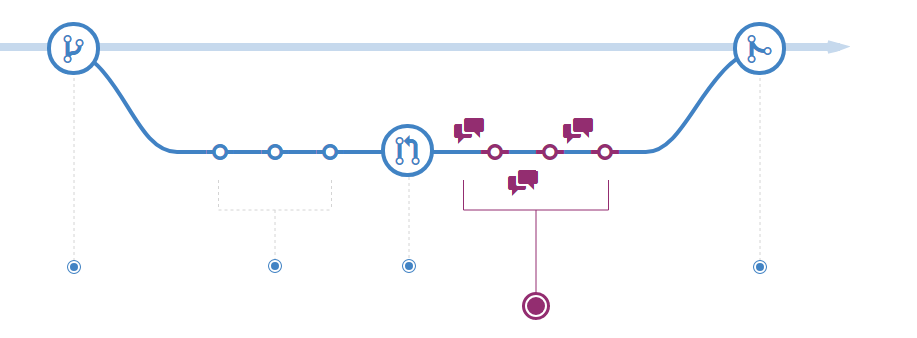
More complex workflows exist for large-scale projects.
There are more complex workflows, notably the Git Flow that I use
to develop this course. This tutorial, very well done,
illustrates with a graph the increased complexity of this flow:
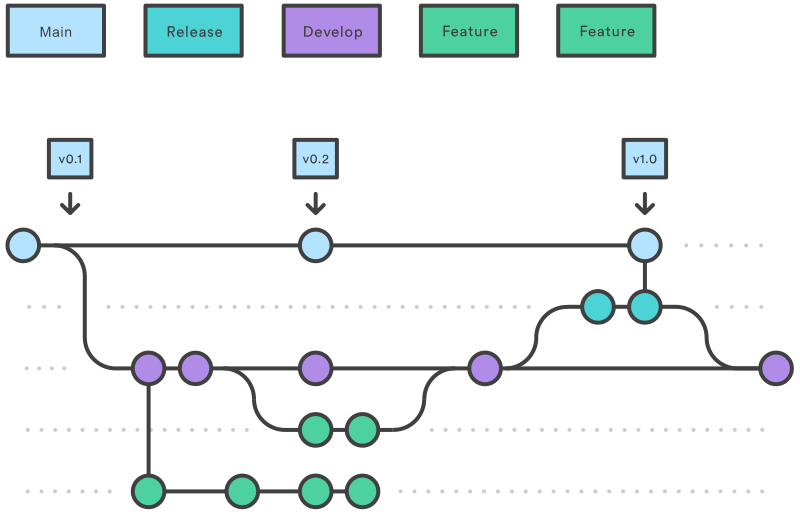
This time, an intermediate branch, for example a development branch,
gathers changes to be tested before integrating them into the
official version (main).
TipTip
You will find dozens of articles and books on this subject, each claiming to have found the best work organisation (Git flow, GitHub flow, GitLab flow…). Do not read too many of these books and articles or you will get lost (a bit like with magazines aimed at new parents…).
The simplest way of working is the Github flow that we suggested you adopt. The tree is recognisable: branches diverge and systematically come back to main.
For more complex projects in teams developing applications, other ways of working can be used, notably Git flow. There are no universal rules to determine the way of working; what matters, above all, is to agree on common working rules with your team.
2.1 Conflicts
During the last exercise of the previous chapter, we discovered, without really explaining it, the principle of a merge. Merging versions consists in reconciling two versions of a piece of code. This can be done by favouring one over the other or by choosing, in the passages that diverge, sometimes one and sometimes the other. We speak of conflicts to describe a situation where the same file has two different versions that must be reconciled.
Git greatly simplifies conflict management, which is one of the reasons for its success. If you have ever shared code by email in a team, you know that reconciling versions is extremely tedious: you have to check, more or less line by line, that the version you received by email does not differ from yours, which you have developed in parallel. Thanks to the fine-grained tracking of a file’s evolution that Git allows, this conflict management is made easier. You will still have to favour one version over the other but it will be faster and more reliable.
While Git offers interesting features for conflict management, this is not an excuse to be disorganised. As we will see in the next exercises, we do have chapters
TipMethod for merges
In the previous chapter, we merged our issue-1 branch into main, our main branch. We went through the Github interface to do so. This is the recommended method for merges into main. It keeps an explicit trace of them (for example here), without having to search the sometimes complex tree of a project.
Good practice is to make a squash commit to avoid an inflation of the number of commits in main: branches are meant to hold a multitude of small commits, while changes in main must be easy to trace, hence the idea of modifying small pieces of code.
As we did in a previous exercise, it is very handy to add close #xx in the body of the message, where xx is the number of an issue associated with the pull request. When the pull request is merged, the issue will be closed automatically and a link will be created between the issue and the pull request. This will let you understand, several months or years later, how and why a given feature was implemented.
On the other hand, integrating the latest changes from main into a branch is done locally. If your branch is in conflict, the conflict must be resolved in the branch and not in main.
main must always remain clean.
2.2 History divergence: the different situations
2.2.1 Simple case
Imagine two people collaborating on a project, Alice and Bob. Bob put the project aside for a few days. He wants to retrieve the progress Alice made during this period. She made the project evolve, let us assume with a single commit since it changes nothing.
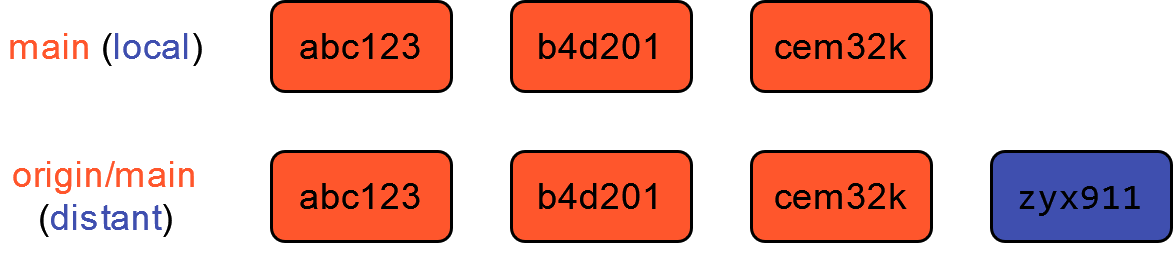
Bob’s history is consistent with the one on Github, it is only missing the last commit in blue (Figure 2.1). Bob therefore just needs to retrieve this commit locally before starting to edit his files.
This type of merge is a fast-forward merge. The remote commit is added to the local history, without difficulty. The local repository is up to date with the remote repository again.
This is the ideal merge because it can be automated, and there is no risk of overwriting changes made by Bob with those of Alice. Adequate team organisation will make sure that most merges are of this type.
2.2.2 A more complicated case
Now, imagine the more complicated case where Bob had made his code evolve in parallel, without retrieving Alice’s changes before coming back to the project.
His local history therefore diverges from the remote history:
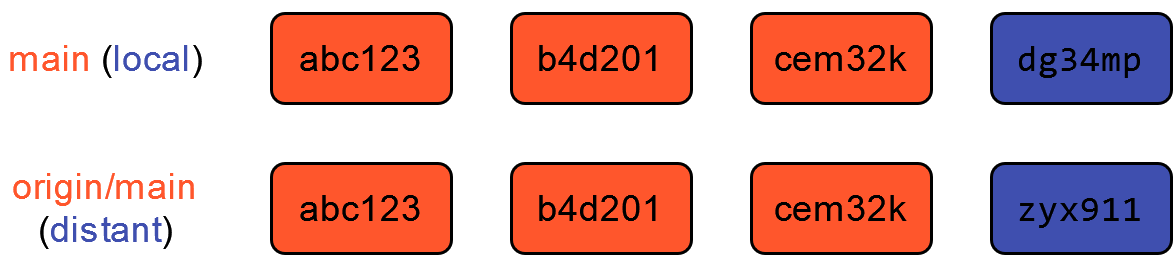
The last commits are not the same. Git cannot resolve the divergence by itself. It is up to Bob to decide which version he prefers. Two strategies are available to reconcile the histories:
- The merge;
- The rebase.
The first method, the simplest, is the merge.
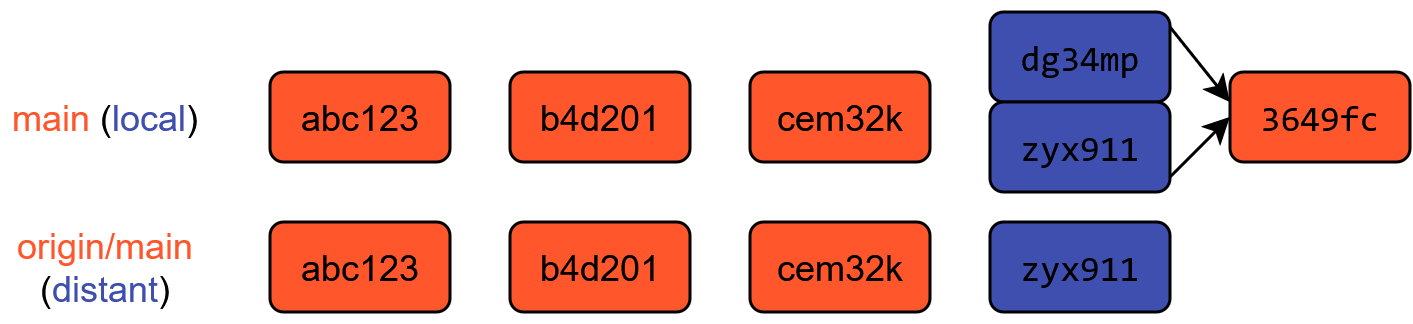
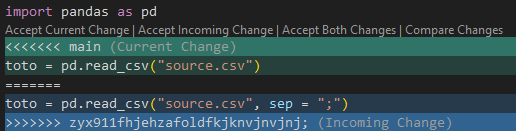
Bringing Alice’s changes into Bob’s history creates a first merge commit. The files in question will then contain markers identifying the version divergence and its source. In the raw file, this will give
import pandas as pd

<<<<<<< main
toto = pd.read_csv("source.csv")
=======
toto = pd.read_csv("source.csv", sep = ";")
>>>>>>> zyx911fhjehzafoldfkjknvjnvjnj;

toto.head(2)VSCode, thanks to the Git extension, offers a native visualisation of this piece of code and offers, with a button click, different ways of reconciling the versions. It is of course always possible to edit these files: simply delete the markers and modify the lines in question.
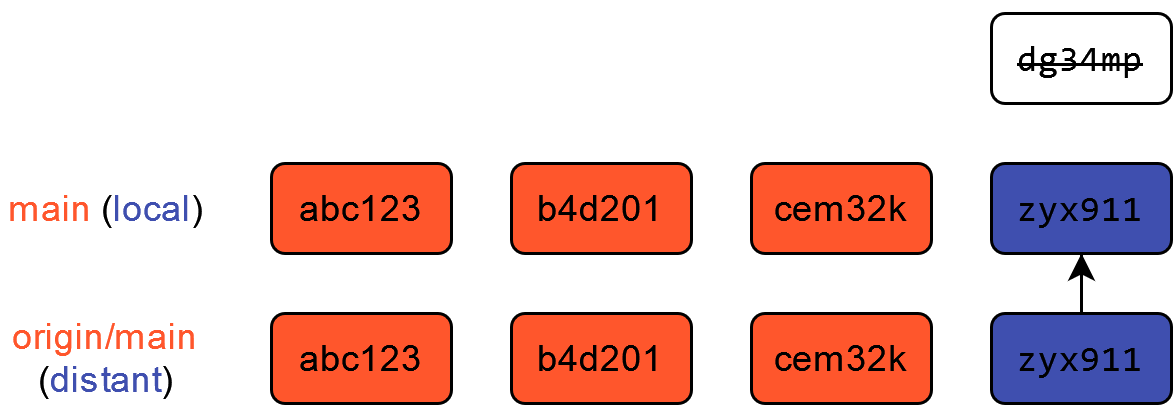
Once the versions are reconciled, all that remains is to make a new commit. This history reconciles Alice’s and Bob’s versions. The drawback is that it makes the history non-linear (see the Atlassian documentation for more details) but it is Git that automatically handled this matter by creating a temporary branch. Until recently, this was the default behaviour of Git.
Another approach is available, the rebase. In fine this will correspond to this clean history.
Nevertheless, this involves intermediate steps that consist in rewriting the history, which is already an advanced operation. In fact, Git performs three steps:
- Temporarily removes the local commit
- Performs a fast forward merge now that the local commit is no longer there
- Adds the local commit back at the end of the history
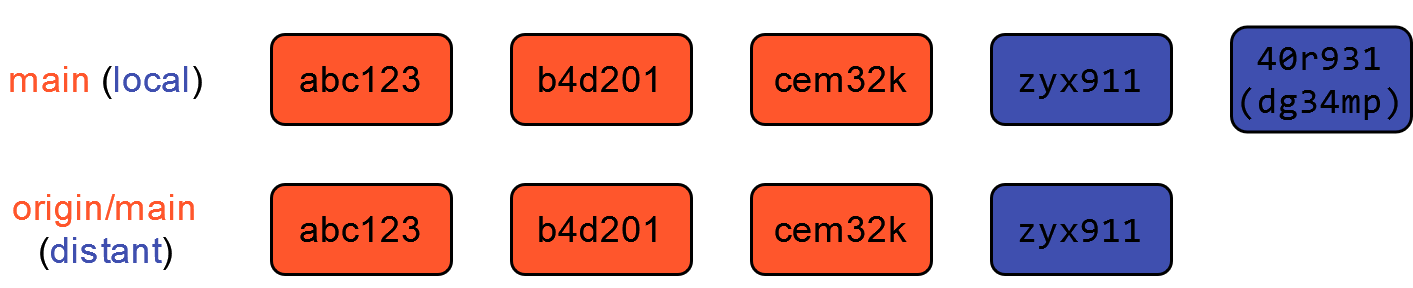
The local commit has changed identity, which explains its new SHA. This approach has the advantage of keeping a linear history. Nevertheless, it can have side effects and should therefore be used with caution (more explanations in the Git documentation). When you are starting out, and even afterwards, it is recommended to favour the merge method, which is the one implemented by default. When you are more comfortable, you can try other merge methods.
3 Putting it into practice
TipExercise 1: Interactions with the remote repository
This exercise is done in groups of three or four. There will be two roles in this scenario:
- One person will be responsible for being the maintainer
- Two to three people will be developers.
1️⃣ The maintainer creates a repository on Github without clicking on the Add a README option. Create a .gitignore using the Python template. They give rights to the project developer(s) (Settings > Manage Access > Invite a collaborator).
2️⃣ Each member of the project creates a local copy of the project (a clone). If you have a memory lapse, you can go back to the previous chapter to check the procedure.
3️⃣ Each member of the project creates a file with their last name and first name, following this structure lastname-firstname.md and avoiding special characters. They write three sentences of their choice in it without punctuation or capital letters (so that a correction can be made later). Finally, they commit on the project through the visual extension.
On the command line, the equivalent commands would be
git add lastname-firstname.md
git commit -m "This is the story of XXXXX"
4️⃣ Everyone tries to send (push) their local changes to the repository using the appropriate buttons of the visual extension.
On the command line, the equivalent command would be
git push origin main5️⃣ At this stage, only one person (the fastest) should not have encountered a push rejection. This is normal: before accepting a change, Git first checks the consistency of the branch with the remote repository. The first person to have pushed modified the shared repository; the others must integrate these changes into their local version (pull) before being allowed to propose a change.
For those whose push was rejected, you will need to do a pull. Do it using the VSCode graphical extension.
On the command line, the equivalent command would be
git pull origin mainto try to bring the remote changes locally.
6️⃣ Look at the tree obtained in the interface to understand how the change from your teammate who could push earlier was integrated.
You will notice that your teammates’ commits are integrated as they are into the history of the repository.
7️⃣ Push again. It is over for the 2nd person. The last person must redo steps 5 to 7 again (in a team of four it will have to be done once more).
❓ Question: what would have happened if the different members of the group had made their changes on one and the same file?
The next exercise offers an answer to this question.
TipExercise 2: Handle conflicts when working on the same file
Continuing from the previous exercise, each person will work on the files of the other team members.
1️⃣ The two or three developers add the punctuation and capital letters to the first developer’s file.
2️⃣ They skip a line and add a sentence (not all the same one).
3️⃣ Validate the results with a commit and make a push.
4️⃣ The fastest person normally encountered no difficulty (they can pause temporarily to watch what will happen to their neighbours). The others see their push rejected and must do a pull.
💥 There is a conflict, which should be signalled by a message like:
Auto-merging XXXXXX
CONFLICT (content): Merge conflict in XXXXXX.md
Automatic merge failed; fix conflicts and then commit the result.
5️⃣ Study the result of git status
6️⃣ If you open the offending files, you should see markers like
<<<<<<< HEAD
this is some content to mess with
content to append
=======
totally different content to merge later
>>>>>>> new_branch_to_merge_later
which are formatted by VSCode as in Figure 2.4.
7️⃣ Fix the files by choosing, for each block, the version that suits you thanks to the actions allowed by Git (Accept Current Change…)
Make a commit with the title “Conflict resolved by XXXX” where XXXX is your name.
8️⃣ Make a push. For the last person, redo operations 4 to 8
Git therefore makes it possible to work, at the same time, on the same file and to limit the number of manual actions needed to do the merge. When working on different parts of the same file, there is not even a need to make a manual modification, the merge can be automatic.
Git is a very powerful tool. But it does not replace good work organisation. As you have seen, this way of working solely on main can be painful. Branches make full sense in this case.
TipExercise 3: Branch management
- 1️⃣ The maintainer will contribute directly to
mainand does not create a branch. Each developer creates a local branch namedcontrib-XXXXXwhereXXXXXis their first name. To do so, in theVSCodeinterface, click on... > Branch > Create branchand enter the branch name in the appropriate menu
On the command line, the equivalent command would be
git checkout -b contrib-XXXXX2️⃣ Each member of the group creates a README.md file in which they write a subject-verb-object sentence. The maintainer is the only one to add a title to the README (which they commit to main).
3️⃣ Everyone pushes the product of their subconscious to the repository.
4️⃣ The developers each open a pull request on Github. The direction to choose is branch -> main. The developers give this pull request an explicit title.
The maintainer chooses one of the pull requests and validates it with the squash commits option. Check the result on the home page.
5️⃣ Each developer goes back to main by clicking on ... > Checkout to and choosing main. Do a pull.
6️⃣ Go back to your branch and do ... > Branch > Merge and choose main. Look at the resulting tree.
7️⃣ The author (if 2 developers) or the two authors (if 3 developers) of the non-validated pull request must repeat operations 5 and 6.
8️⃣ Once the version conflict is resolved and pushed, the maintainer validates the pull request following the same procedure as before.
9️⃣ Check the tree of the repository in Insights > Network. Your tree must have the characteristic shape of what is called the Github flow:
It is absolutely not mandatory for every collaborative project to choose this way of collaborating. For many projects, where people do not edit the same part of a file at the same time, going directly through main is enough. The mode above is important for substantial projects, where the main branch must be impeccable because, for example, it triggers a series of automated tests and the automated deployment of a deliverable. But for more modest projects, it is not necessary to go to extreme formalism. Good use of Git is pragmatic use, where it is used for its advantages and where work organisation adapts to them.
4 The specific challenges of the difficult interaction between Git and notebooks
The notebook format is very interesting for experimentation and for the final dissemination of results. Nevertheless, the complex structure of a notebook makes version control complicated. Indeed, opening it in a suitable editor (Jupyter or VSCode) provides a rendering that does not match the raw structure of the file as stored on disk. Behind the scenes, notebooks are JSON files that embed many elements: code, execution results, additional metadata… The fine-grained tracking of file changes that Git allows is complicated on a file with such a structure. The goal of this exercise is to illustrate these challenges and to mention some possible solutions.
TipExercise 4: Version control and notebooks, an uneasy marriage
This exercise is still done as a team. When asked to make a commit, give it a meaningful name so that you can easily find your way when asked to look at the history. Do not push or pull until you get to the part where this is requested.
- All team members go back to their
mainbranch on their working copy
Each team member does the following questions.
- Measure the size of the whole history on the command line with the command
du -sh .git- Download the notebook used for this exercise before the following command, on the command line:
curl "https://minio.lab.sspcloud.fr/lgaliana/python-ENSAE/inputs/git/exemple.ipynb" -o "notebook.ipynb"Do not open this file (the subject of the next question).
Make a commit of this notebook then redo
du -sh .git- Observe the first change in the size of our history
- Open the notebook, run its cells, reordering them if necessary to debug the file.
- Make a commit of this notebook when it works then redo
du -sh .git- Now, make the following changes to the file:
- Change the
df.head(3)cell todf.head(20) - Create a new cell with the code
df["TYPEQU"].value_counts().plot(kind = "bar") - Change the
zoom_startvariable in the cell producing the interactive map. Set its value to 13 instead of 15.
- Change the
- Make a commit of this notebook when it works then redo
du -sh .git- Change the colour of the barplot with the
colorargument. Save, commit then redo
du -sh .git- Look at the history from the
VSCodeextension. Observe how your file evolves at each commit.
Now, we can move on to the collaborative step.
- Each team member pushes:
- If the push works (the fastest person), modify the colour of the barplot again. Commit but do not push (wait until the other group members have done so then move on to question 9)
- If the push does not work (the slower people), move on to question 9.
- In the
VSCodeextension, display the tree by clicking on theView Git Graphbutton.
- At the top of it, click on
Uncommitted changes. This displays the changes that are not yet accepted. - Click on
notebook.ipynbto see the diff between your version and your teammate’s. Do you understand the problem? - Manually accepting each difference would be too costly. Accept your teammate’s version (Accept incoming). Commit and observe the diff. Push.
For the last person in the group who could not push, redo question 9. After pushing, the person who was fastest in question 8 can do question 9 by retrieving the latest commits.
This exercise illustrates three points of difficulty with notebooks:
- The size of
ipynbfiles quickly becomes large because the outputs are inserted into them, in raw form. - It quickly becomes difficult to follow code changes because the code is drowned among other changes (notably those of the outputs).
- Conflict resolution is complicated because the JSON structure has to be preserved. It is in fact common for a merge to break this structure and make the notebook unreadable.
To solve these problems, there are several methods:
- If you want to keep the notebook as the place where code is stored, you must click on the
Clear all outputsbutton before agit addstep. Thenbstripoutpackage can be an interesting solution to avoid doing this manually each time, as you risk forgetting and thus making the repository size grow anyway. Nevertheless, this approach only solves part of the problems since it only lightens the versioned JSON; it makes the risk of breaking the notebook during conflict resolution less likely but does not make it impossible. - Work in a team on different notebooks, as was advised for text files. This avoids conflicts altogether. However, it risks inducing code redundancy and therefore problems later on if you want to synthesise the different pieces of work.
- Adopt a more modular structure by moving as much code as possible into
.pyfiles and importing the appropriate elements into the notebooks. This allows you to take advantage ofGit, which tracks.pyfiles very well, while also providing benefits for the quality of the notebooks. Being less monolithic, they will probably be of better quality.
This last approach is a way of opening up to the good practices discussed in the 3rd-year course on “Putting into production” (in French).
5 Conclusion
These chapters devoted to Git have helped demystify this software by illustrating, through practice, the main concepts and the daily routine. They aim to save you precious hours because learning Git on your own is often frustrating and incomplete. It is essential to keep the habit of using Git on your projects. They will be of better quality.
We have only seen the basic features of Git and Github. The purpose of the ENSAE 3rd-year course “Putting data science projects into production” (in French) is to introduce other features of Git and Github that make it possible to produce more ambitious, more reliable and more scalable projects.
Informations additionnelles
NotePython environment
This site was built automatically through a Github action using the Quarto
The environment used to obtain the results is reproducible via uv. The pyproject.toml file used to build this environment is available on the linogaliana/python-datascientist repository
pyproject.toml
[project]
name = "python-datascientist"
version = "0.1.0"
description = "Source code for Lino Galiana's Python for data science course"
readme = "README.md"
requires-python = ">=3.13,<3.14"
dependencies = [
    "altair>=6.0.0",
    "cartiflette>=0.2",
    "contextily==1.6.2",
    "duckdb>=0.10.1",
    "folium>=0.19.6",
    "gdal==3.11.4",
    "graphviz==0.20.3",
    "great-tables>=0.12.0",
    "gt-extras>=0.0.8",
    "ipykernel>=6.29.5",
    "jupyter>=1.1.1",
    "jupyter-cache>=1.0.0",
    "kaleido>=0.2.1",
    "langchain-community>=0.3.27",
    "loguru==0.7.3",
    "markdown>=3.8",
    "nbclient>=0.10.0",
    "nbformat>=5.10.4",
    "nltk>=3.9.1",
    "openpyxl>=3.1.5",
    "pandas>=3.0",
    "pip>=25.1.1",
    "plotly>=6.1.2",
    "plotnine>=0.15",
    "polars>=1.8.2",
    "py7zr>=1.1.3",
    "pyarrow>=17.0.0",
    "pynsee>=0.1.8",
    "python-dotenv>=1.0.1",
    "python-frontmatter>=1.1.0",
    "pywaffle>=1.1.1",
    "requests>=2.32.3",
    "scikit-image>=0.24.0",
    "scikit-learn>=1.8.0",
    "scipy>=1.13.0",
    "seaborn>=0.13.2",
    "selenium<4.39.0",
    "spacy>=3.8.4",
    "webdriver-manager>=4.0.2",
    "wordcloud==1.9.3",
]

[tool.uv.sources]
gdal = [
  { index = "gdal-wheels", marker = "sys_platform == 'linux'" },
  { index = "geospatial_wheels", marker = "sys_platform == 'win32'" },
]

[[tool.uv.index]]
name = "geospatial_wheels"
url = "https://nathanjmcdougall.github.io/geospatial-wheels-index/"
explicit = true

[[tool.uv.index]]
name = "gdal-wheels"
url = "https://gitlab.com/api/v4/projects/61637378/packages/pypi/simple"
explicit = true

[dependency-groups]
dev = [
    "nb-clean>=4.0.1",
]
To use exactly the same environment (version of Python and packages), please refer to the documentation for uv.
NoteFile history
| SHA | Date | Author | Description |
|---|---|---|---|
| 345804e7 | 2026-09-26 09:17:19 | Lino Galiana | Création d’un PDF avec typst (#703) |
| 41a9a818 | 2026-09-20 07:29:59 | linogaliana | traduction anglaise chapitre 2 git |
| 4f708a9e | 2026-06-09 19:03:54 | linogaliana | remove git merge option no longer needed |
| 5b396f44 | 2026-03-20 10:11:56 | lgaliana | Images cassées |
| 121d535b | 2026-03-14 14:02:04 | lgaliana | Solve missing pictures |
| fe573ec0 | 2025-12-23 12:54:11 | Lino Galiana | Un syllabus sous la forme d’un joli tableau (#667) |
| 94648290 | 2025-07-22 18:57:48 | Lino Galiana | Fix boxes now that it is better supported by jupyter (#628) |
| 1202a02c | 2024-10-22 11:25:10 | Lino Galiana | Git, modifs suite au cours de 2024 (#568) |
| 00f28a35 | 2024-10-15 13:41:20 | lgaliana | Ajoute questions collaboratifs Git |
| e0fa908a | 2024-10-12 13:50:16 | lgaliana | Mise en forme exogit |
| adc46575 | 2024-10-11 17:17:25 | lgaliana | color |
| 288bd4aa | 2024-10-11 17:16:19 | lgaliana | Interface graphique pour l’exo 3 également |
| 25ca3320 | 2024-10-11 16:38:02 | lgaliana | Retirer ligne de commande |
| 20672a4b | 2024-10-11 13:11:20 | Lino Galiana | Quelques correctifs supplémentaires sur Git et mercator (#566) |
| 3e04253c | 2024-09-30 10:11:32 | Lino Galiana | Grosse mise à jour de la partie Git (#557) |
| 580cba77 | 2024-08-07 18:59:35 | Lino Galiana | Multilingual version as quarto profile (#533) |
| 005d89b8 | 2023-12-20 17:23:04 | Lino Galiana | Finalise l’affichage des statistiques Git (#478) |
| 4c1c22d5 | 2023-12-10 11:50:56 | Lino Galiana | Badge en javascript plutôt (#469) |
| 1f23de28 | 2023-12-01 17:25:36 | Lino Galiana | Stockage des images sur S3 (#466) |
| a06a2689 | 2023-11-23 18:23:28 | Antoine Palazzolo | 2ème relectures chapitres ML (#457) |
| 56d092b2 | 2023-11-14 15:43:00 | Antoine Palazzolo | update readme (#451) |
| 09654c71 | 2023-11-14 15:16:44 | Antoine Palazzolo | Suggestions Git & Visualisation (#449) |
| b6ae3e3b | 2023-11-14 05:49:42 | linogaliana | Corrige balise md |
| ae5205fb | 2023-11-13 20:35:43 | linogaliana | précision |
| 428d6695 | 2023-11-13 20:31:11 | linogaliana | Exo gitignore |
| 66c6a295 | 2023-11-13 19:53:49 | linogaliana | jupyter sspcloud credential helper |
| 69d5bc70 | 2023-11-13 19:44:01 | linogaliana | mise à jour de quelques consignes |
| e3f1ef10 | 2023-11-13 11:53:50 | Thomas Faria | Relecture git (#448) |
| ea9400a4 | 2023-11-05 10:54:04 | tomseimandi | Include VSCode instructions in exogit (#447) |
| 9366e8d2 | 2023-10-09 12:06:23 | Lino Galiana | Retrait des box hugo sur l’exo git (#428) |
| a7711832 | 2023-10-09 11:27:45 | Antoine Palazzolo | Relecture TD2 par Antoine (#418) |
| f8831e77 | 2023-10-09 10:53:34 | Lino Galiana | Relecture antuki geopandas (#429) |
| 5ab34aa4 | 2023-10-04 14:54:20 | Kim A | Relecture Kim pandas & git (#416) |
| 154f09e4 | 2023-09-26 14:59:11 | Antoine Palazzolo | Des typos corrigées par Antoine (#411) |
| b6492058 | 2023-08-28 15:47:09 | linogaliana | Nice image |
| 9a4e2267 | 2023-08-28 17:11:52 | Lino Galiana | Action to check URL still exist (#399) |
| 3bdf3b06 | 2023-08-25 11:23:02 | Lino Galiana | Simplification de la structure 🤓 (#393) |
| 30823c40 | 2023-08-24 14:30:55 | Lino Galiana | Liens morts navbar (#392) |
| 2dbf8533 | 2023-07-05 11:21:40 | Lino Galiana | Add nice featured images (#368) |
| 34cc32c3 | 2022-10-14 22:05:47 | Lino Galiana | Relecture Git (#300) |
| fd439f03 | 2022-09-19 09:37:50 | avouacr | fix ssp cloud links |
| 3056d410 | 2022-09-02 12:19:55 | avouacr | fix all SSP Cloud launcher links |
| f10815b5 | 2022-08-25 16:00:03 | Lino Galiana | Notebooks should now look more beautiful (#260) |
| 12965bac | 2022-05-25 15:53:27 | Lino Galiana | :launch: Bascule vers quarto (#226) |
| 9c71d6e7 | 2022-03-08 10:34:26 | Lino Galiana | Plus d’éléments sur S3 (#218) |
| 0e01c33f | 2021-11-10 12:09:22 | Lino Galiana | Relecture @antuki API+Webscraping + Git (#178) |
| 9a3f7ad8 | 2021-10-31 18:36:25 | Lino Galiana | Nettoyage partie API + Git (#170) |
| 2f4d3905 | 2021-09-02 15:12:29 | Lino Galiana | Utilise un shortcode github (#131) |
| 4cdb759c | 2021-05-12 10:37:23 | Lino Galiana | :sparkles: :star2: Nouveau thème hugo :snake: :fire: (#105) |
| 7f9f97bc | 2021-04-30 21:44:04 | Lino Galiana | 🐳 + 🐍 New workflow (docker 🐳) and new dataset for modelization (2020 🇺🇸 elections) (#99) |
| 36ed7b10 | 2020-10-07 12:36:03 | Lino Galiana | Cadavre exquis (#66) |
| d1ad64c0 | 2020-10-04 14:43:55 | Lino Galiana | Finalisation de la première partie de l’exo git (#62) |
| 283e8e98 | 2020-10-02 18:54:30 | Lino Galiana | Première partie des exos git (#61) |
Citation
BibTeX citation:
@book{galiana2025,
  author = {Galiana, Lino},
  title = {Python Pour La Data Science},
  date = {2025},
  url = {https://pythonds.linogaliana.fr/},
  doi = {10.5281/zenodo.8229676},
  langid = {en}
}
For attribution, please cite this work as:
Galiana, Lino. 2025. Python Pour La Data Science. https://doi.org/10.5281/zenodo.8229676.